For two years, AI Overviews and AI Mode were the biggest measurement blind spot in search. Pages got cited. Traffic patterns shifted. And not a single line of that activity showed up in any standard report. On a recent SaaS audit, Stephen Smith watched a client lose 23% of organic clicks while their impression count climbed. Classic AI cannibalisation, with no way to attribute the loss to anything specific.
That just changed.
Google Search Console now ships a dedicated Generative AI features report. It separates AI Overview and AI Mode performance from regular search results, and gives the first concrete look at which pages Google’s AI is actually surfacing. This guide walks through where to find it, what is in it, what is missing, and how to use the data without overreacting to it.
Where to Find the Generative AI Features Report
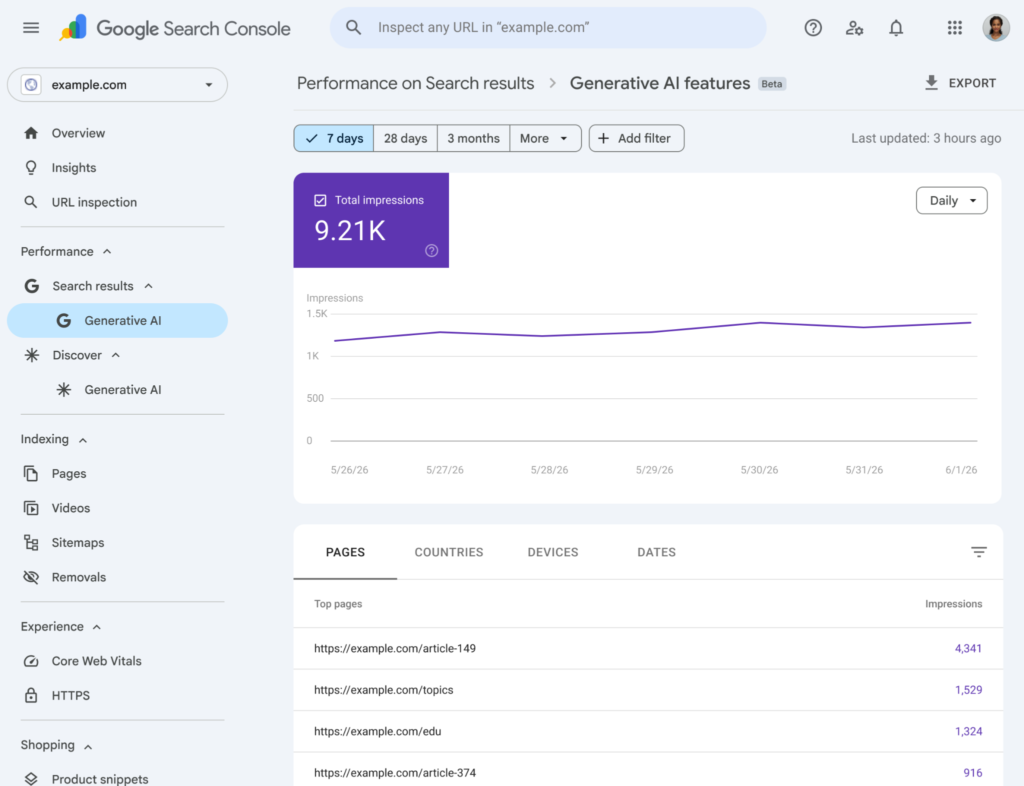
The Generative AI features report lives under Performance > Search results in Google Search Console, accessed by switching the search appearance filter to “Generative AI features”. It is currently labelled Beta.
How AI Overview and AI Mode citations flow into the Search Console Generative AI features report.
Steps to open it:
- Open Google Search Console
- Select the property to inspect
- Click Performance > Search results in the left navigation
- Click the “Search appearance” filter at the top of the report
- Select “Generative AI features” from the dropdown
The report has its own dedicated view. Toggling the filter strips out non-AI impressions and shows only the data tied to AI Overview and AI Mode citations. If the filter is greyed out, the property has not yet been allow-listed. Google rolled this out in waves through Q2 2026.
What the Generative AI Performance Report Actually Shows
The Generative AI features report shows impressions, top pages, countries, devices, and dates. Click data is not included at launch. This is the same dimension set as the standard Performance report, minus clicks and CTR.
Available date ranges:
- 7 days
- 28 days
- 3 months
- Custom date range up to 16 months back once allow-listed
Tabs available on the report:
- Pages. Which URLs surfaced inside AI Overviews or AI Mode
- Countries. Geographic breakdown of impressions
- Devices. Desktop, mobile, and tablet split
- Dates. Daily impression trend over the selected window
Stephen has audited 14 sites since the beta opened. The pattern is consistent. The top 10 AI-cited pages overlap with the top 10 organic ranking pages roughly 60 to 70 percent of the time. The remaining 30 to 40 percent are pages that rank lower in classic search but are written in a way AI engines prefer. Direct answers, clear structure, entity-rich language.
How to Identify Your Best-Performing AI Pages
The fastest way to surface AI-cited pages is to sort the Pages tab by impressions while the Generative AI features filter is active. The top URLs are the pages Google’s AI is actively pulling from.
What to do with the list:
- Compare it against the top 20 pages in the standard Performance report. Pages that appear in both are AEO winners. Keep them updated and link to them internally.
- Look for pages that appear in the AI list but not the standard top 20. These are AEO outperformers. The content structure is working even when classical ranking is not strong.
- Look for pages with high standard rankings but zero AI citations. These are optimization candidates. The content ranks but is not being surfaced as a clean citation.
On a B2B SaaS audit, the Waftr team found a glossary page ranking 18th organically that was generating 4.2 times more AI impressions than the company’s second-ranked blog post. The glossary entry was 180 words, structured as a direct definition. The blog post was 2,400 words of context-heavy storytelling. AI engines rewarded the cleaner format.
How to Compare AI Visibility to Traditional Search
Stack the Generative AI features filter against a Compare view to see how AI surface area is shifting relative to standard search.
Steps:
- Open the Performance > Search results report
- Click “Add filter” at the top
- Select Search appearance > Generative AI features
- Click the Date filter and choose Compare
- Select “Compare last 28 days to previous period”
The chart will overlay the two periods. A widening gap between AI impressions and standard impressions usually signals one of two things. Either Google is showing AI results more aggressively for the queries the site ranks for, or competing content is being cited instead of the site’s own pages.
Both situations require action, but the action is different. The first means existing top-ranking pages need to be reformatted for AI citation. The second means new content is needed for queries the site is missing entirely.
What Is Missing from the Report
The Generative AI features report does not show clicks, click-through rate, or query data at launch. Three significant gaps remain.
The missing data points:
- No click data. Impressions only, with no way to measure click-through from AI Overview citations inside Search Console today.
- No query data. The report shows pages cited but not the user queries that triggered the AI response.
- No citation type breakdown. AI Overview citations and AI Mode citations are merged into one number.
Workarounds:
- Use Google Analytics 4 (GA4) referral data alongside Search Console impressions. GA4 will record sessions from google.com landings even when the click originated inside an AI Overview.
- Set up a BigQuery export of Search Console data to preserve daily snapshots and build longer-term trend lines.
- For query-level visibility, monitor a list of priority terms manually in incognito mode or use a third-party AI visibility tracker.
The clicks gap is the biggest issue. Until Google releases click data for AI citations, attribution remains incomplete. Impressions are useful for tracking surface area but cannot prove revenue impact on their own.
How to Use This Data Without Spinning Out
Treat the Generative AI features report as a measurement baseline, not a performance review. Three weeks of data is not enough to change a content strategy.
What to do first:
- Export the Pages tab for the last 28 days and store it as a baseline snapshot.
- Re-export weekly to track movement.
- Tag the top 20 AI-cited pages inside a content tracker.
- Compare the list against an organic ranking export to spot the gap.
- Pick three pages to rewrite for AEO and measure the change against the baseline.
Avoid the trap of reformatting every page after one week of data. The report is volatile in beta. Pages drop in and out of citation pools as Google tunes its AI models, and a page that gets zero impressions one week may get hundreds the next.
The Waftr team has been building a quarterly AEO scorecard for clients that combines the Generative AI features report with GA4 referral data, BigQuery exports, and manual query tracking. That layered view tells a clearer story than any single report does on its own. More on the methodology under SEO and AEO analytics services.
Frequently Asked Questions
Q: Where is the Generative AI features report located in Google Search Console?
A: The report is under Performance > Search results. Click the Search appearance filter at the top and select “Generative AI features” from the dropdown. It is currently labelled Beta.
Q: Does the report show clicks from AI Overviews?
A: No. At launch the Generative AI features report shows impressions, top pages, countries, devices, and dates only. Click data and CTR are not included.
Q: How often is the Generative AI features data refreshed?
A: The report follows the same refresh cadence as the standard Performance report. Data appears with a 24 to 48 hour delay and is available for date ranges up to 16 months back once the property is allow-listed.
Q: How are AI Overview impressions counted?
A: An impression is logged when a page citation is scrolled into view or expanded inside an AI Overview or AI Mode response. Simply being available as a potential citation does not count.