On every Google Analytics 4 (GA4) audit Stephen Smith runs at Waftr, the same pattern shows up. A team set up GA4 in 2023 or 2024, copied a tutorial from a blog, fired the base tags, and never came back. By 2026 the data is wrong in ways nobody knows how to talk about. Conversion counts that do not match the CRM. Direct traffic that quietly absorbed ChatGPT and Perplexity referrals. Consent banners that look compliant but leak data anyway. A BigQuery export that was never connected.
Setting up GA4 from scratch in 2026 is a different exercise than it was even a year ago. Consent Mode v2 is now enforced for advertisers in the EEA. Server-side Google Tag Manager (GTM) has shifted from nice-to-have to the only way to recover the 30 to 35 percent of conversions that intelligent tracking prevention silently drops. And on May 13, 2026 Google added a native AI Assistant channel to GA4, finally separating ChatGPT, Gemini, and Claude traffic from generic referrals.
This is the implementation playbook the Waftr team uses on every greenfield GA4 build. It assumes nothing exists yet. By the end the setup is auditable, server-side ready, consent-aware, AI-traffic aware, and exporting to BigQuery from day one.
Start With a Tracking Specification, Not Tags
A correct GA4 implementation starts with a written tracking specification before any tag fires. Skipping this step is the single biggest cause of broken GA4 setups.
The specification defines every event, every parameter, the data type, the expected value range, where it fires, and what user journey it belongs to. Treat it like code. Put it in a Google Sheet, Notion doc, or a versioned file in the engineering repo. Require pull requests for changes.
On a recent SaaS audit, the Waftr team found 47 distinct event names in a property that had been live for 18 months. Thirty-one of them were typos, abandoned tests, or duplicates. Six of the events that mattered had inconsistent parameter names across pages, so reports averaged null values together with real ones. The fix took three weeks. The specification doc that prevents this takes two days to write.
The specification answers four questions for every event: what triggers it, what data it carries, who depends on the report it feeds, and what happens if it stops firing. If those four cannot be answered, the event does not get implemented.
Create the Property and Data Stream the Right Way
One GA4 property per business, one data stream per domain, data retention set to 14 months on day one. Do not split a single product across multiple properties.
This is where most setups quietly limit themselves before a single tag fires. GA4’s default data retention is 2 months for Explore reports. Nobody changes this until they need a year-over-year report and discover the data evaporated. Set it to 14 months immediately under Admin, then Data Settings, then Data Retention.
Use a single web data stream for each domain. Subdomains belong on the same stream unless they represent a completely separate business unit. Cross-domain measurement is configured on the stream, not by duplicating properties. Splitting a product across multiple properties creates two data sets nobody can join cleanly without BigQuery work.
Turn on enhanced measurement for the events the team will actually use: page_view, scroll, outbound clicks, site search, video engagement, and file downloads. Turn off anything the spec does not list. Enhanced measurement is helpful by default and noisy at scale.
Set up internal traffic filters before the property goes live. Office IP ranges, VPN ranges, the development environment subdomain, all of it. On a recent fintech audit Stephen found internal traffic accounting for 18 percent of recorded conversions. The team’s own QA testing had been padding the funnel for months. A short GA4 audit surfaces this kind of internal contamination in under a day.
The 2026 GA4 Architecture
A correct 2026 GA4 setup runs through six distinct layers: the browser, the dataLayer and the consent management platform, the GTM Web Container, the server-side GTM (sGTM) container, the GA4 property, and finally the BigQuery export.
Each layer does one job. The browser fires user actions. The dataLayer captures them as structured events. The GTM Web Container reads the dataLayer, applies consent state, and forwards to the sGTM container. The sGTM container enriches, filters, and routes events to GA4 and other destinations. GA4 receives the data, processes it, and exports raw events to BigQuery on a daily schedule.
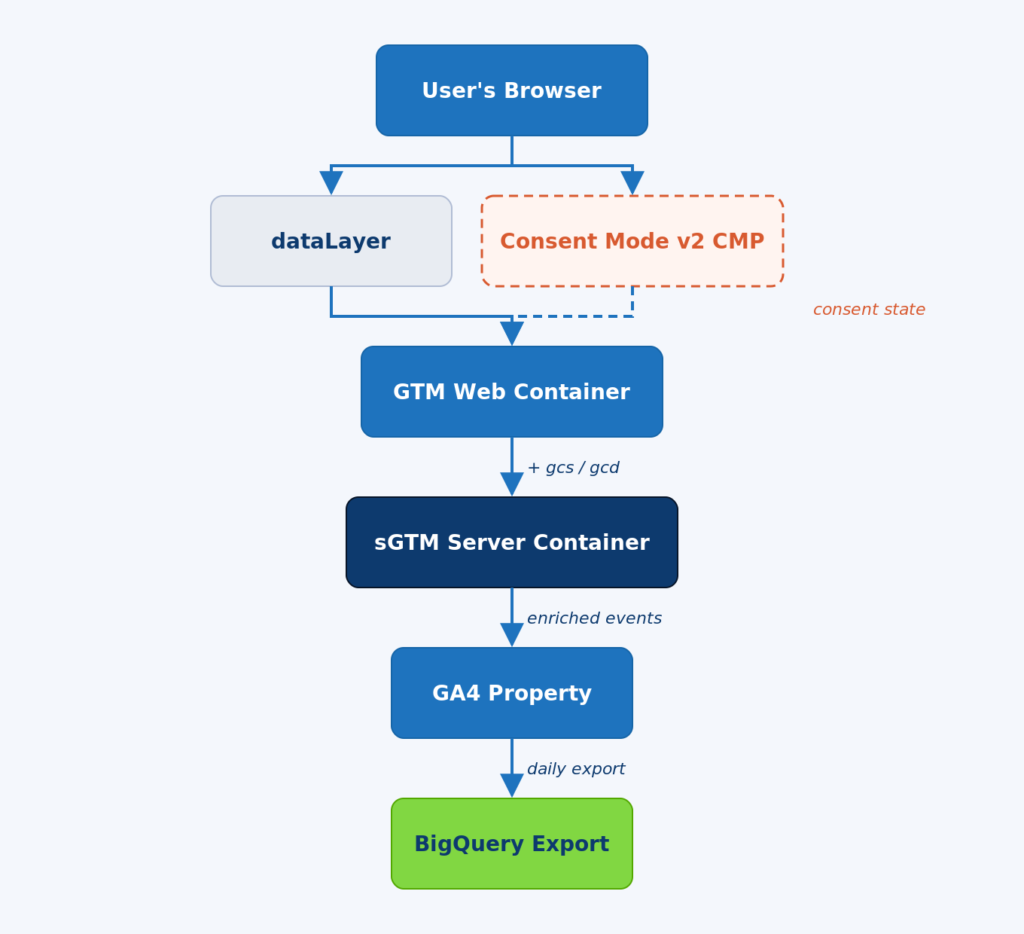
Figure 1. The 2026 GA4 architecture – browser to BigQuery, with Consent Mode v2 flowing through every layer.
Walk it from the top down. The user’s browser fires every interaction. Page views, clicks, form submissions, scroll depth all flow into the dataLayer as structured events. The Consent Mode v2 CMP sits beside the dataLayer and is the first thing that loads, not the last. The CMP sets the default consent state before any tag has a chance to fire.
The GTM Web Container reads the dataLayer and applies the consent state to every outbound request. The Google Tag in the web container automatically forwards consent state to the server container as the gcs and gcd parameters. Server-side tags then read these parameters and behave accordingly.
The sGTM Server Container enriches events with first-party data, strips PII before it ever reaches Google’s servers, and routes events to GA4, Google Ads, Meta CAPI, and other endpoints. The GA4 property processes the data and writes a daily raw export to BigQuery.
The architecture above gives the team three things default setups cannot: durable client identifiers via first-party cookies, full control over PII before it hits Google’s servers, and a recoverable signal in the 30 percent of cases where the browser blocks third-party requests.
Wire Consent Mode v2 Before You Send a Single Event
Consent Mode v2 must be configured with default-denied consent state before any GA4 tag has a chance to fire. If a tag fires before the consent default loads, the banner is decorative and the data is non-compliant.
Three pieces have to be in place. First, a certified consent management platform (CMP) that is on Google’s approved list. Self-rolled banners do not satisfy Google’s 2026 requirement for advertisers operating in the EEA. Second, the default consent state set to denied for ad_storage, analytics_storage, ad_user_data, and ad_personalization. Third, an update call that fires when the user makes a choice.
The load order matters. The CMP loads first, sets the default state, and only then does GTM evaluate tags. Most broken implementations have GTM loading before the CMP, so the consent default is granted by accident and the banner does nothing.
On a recent ecommerce audit Stephen found the CMP firing on every page but the GA4 tag set to consent not required. Sessions were being recorded for users who had explicitly declined cookies. The fix took 20 minutes. The legal exposure had been quietly accumulating for nine months.
Send the consent state to the server-side container too. The Google Tag in GTM Web does this automatically as gcs and gcd parameters. If Meta, TikTok, or Pinterest tags are firing server-side, they need to be wired to read the same consent state. Most teams wire consent for Google tags only and let everything else fire regardless, creating a compliance gap that Waftr’s website privacy services consistently surface during audits.
[CALLOUT] If the consent banner asks for choice but the page already has GA4 cookies set, the consent flow is broken. Open DevTools, hard-reload with cache disabled, and watch what cookies appear before the user clicks Accept. There should be none.
Build the Event Model Around One Core Pattern
Instead of inventing a new event for every action, track one core event per category and attach event-scoped custom dimensions for variation. This pattern scales. GA4 caps custom event names at 500 per property and parameter combinations at 50 per event.
A common failure is the event explosion. Teams create cta_homepage_hero, cta_homepage_footer, cta_pricing_top, cta_pricing_bottom, and twenty more. Reports become a mess of overlapping events that cannot be compared without manual aggregation.
The clean pattern is one event called cta_click with three parameters: cta_location, cta_destination, and cta_label. The report can now filter, group, and segment by any combination of those parameters. The event count stays manageable. The custom dimensions stay readable.
dataLayer push – the right shape
window.dataLayer = window.dataLayer || [];

window.dataLayer.push({

  event: 'cta_click',

  cta_location: 'pricing_page_hero',

  cta_destination: '/signup',

  cta_label: 'Start free trial'

});
For e-commerce, use Google’s recommended event names exactly as written: view_item, add_to_cart, begin_checkout, purchase. These map automatically to GA4’s monetization reports. Renaming them breaks the reporting layer that depends on them.
Register every custom dimension and metric under Admin, then Custom definitions, before the event fires. An event parameter that is not registered as a custom dimension shows up as (not set) in reports. This catches teams by surprise constantly.
When to Move to Server-Side Tagging
Server-side tagging is required in 2026 when an event carries PII, drives revenue or ad bidding, or is materially affected by intelligent tracking prevention. For everything else, client-side GTM is still acceptable.
The shift in 2026 is real. Industry data shows that without server-side tagging, browsers and ad blockers drop 30 to 35 percent of GA4 events before they reach Google. With a properly configured sGTM container, that recovery climbs above 90 percent. For a SaaS business with paid acquisition, the difference is whether the optimization model has enough signal to learn from.
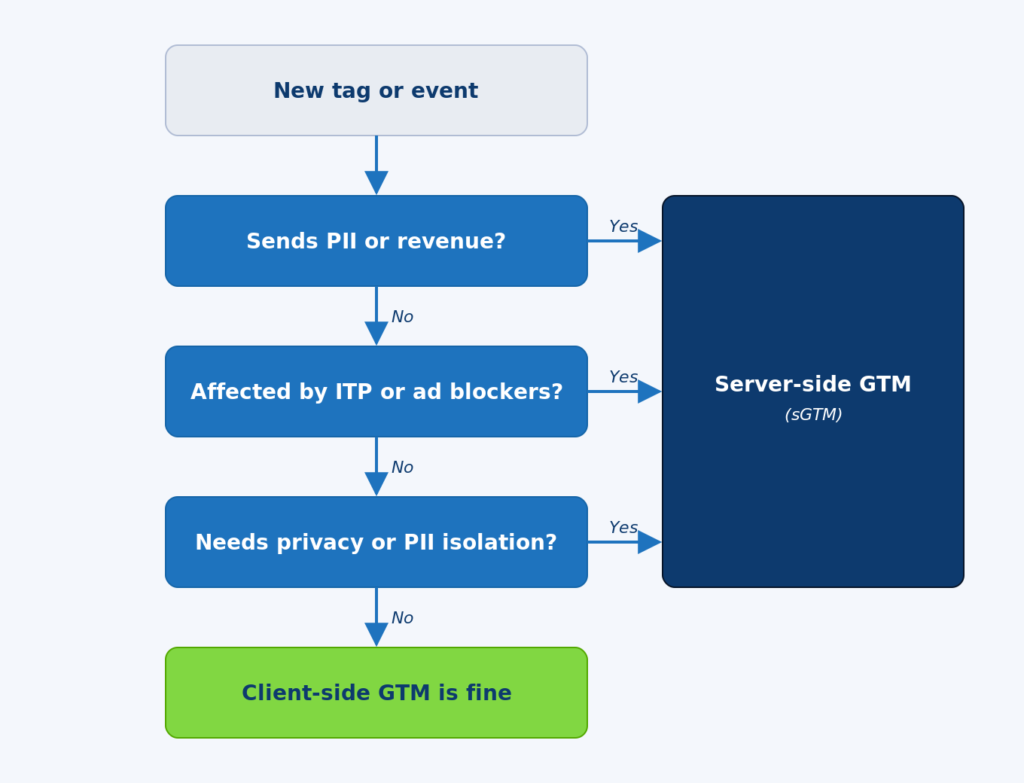
Figure 2. The decision flow for choosing client-side vs server-side GTM in 2026.
Walk the diagram top to bottom. Every new tag goes through three checks. First, does the event carry personally identifiable information like email, phone, or hashed user ID? If yes, it has to go server-side so PII can be stripped or hashed before it reaches Google’s servers. Second, does the event affect revenue reporting or Google Ads bidding? If yes, the answer is server-side because lost signal here costs real budget. Third, is the event materially affected by ITP, ad blockers, or browser tracking restrictions? If yes, server-side is the only way to recover the signal.
If none of those apply, client-side is fine. Most engagement events, scroll tracking, and content interaction can stay client-side without losing meaningful data.
Hosting the sGTM container has three viable options in 2026. Google Cloud Run is the cheapest if the team is comfortable with GCP – usually 20 to 80 dollars a month for typical SaaS volume. Stape is the easiest for teams without infrastructure operators, a managed sGTM hosting service that handles scaling, SSL, and monitoring. Self-hosting on AWS or Azure is fine but adds operational work that most teams do not need.
The most common mistake on a new sGTM build is leaving verbose logging enabled by default. Logs are read once a quarter and paid for continuously. Switch logging to errors only after the validation period ends.
The New AI Assistant Channel – What Changed in May 2026
On May 13, 2026 Google added a native AI Assistant channel to GA4. ChatGPT, Gemini, and Claude traffic now gets categorized automatically based on referrer header, without any configuration on the property owner’s side.
This is the most significant default channel change since GA4 launched. Until May 2026, AI assistant traffic landed in the Referral channel by default or, more commonly, in Direct when the referrer was stripped. Teams who cared about AI visibility had to build custom regex-based channel groups manually.
Now the change is automatic. Three things happen at once. The Medium dimension gets a new ai-assistant value when the referrer matches a recognized AI Assistant. The Default Channel Group shows a new AI Assistant channel in Acquisition reports. The Campaign Name dimension receives an (ai-assistant) value for these sessions.
Three caveats matter. First, the classification only works when the referrer header is present. A session with no referrer still lands in Direct. Second, the recognized assistants are currently ChatGPT, Gemini, and Claude – Perplexity, Copilot, and other AI search tools still need custom channel groups to surface separately. Third, historical data does not get reclassified. Past AI assistant sessions remain in Direct or Referral wherever they originally landed.
For teams running answer engine optimization (AEO) and generative engine optimization (GEO) work, this is the cleanest measurement signal Google has shipped for AI traffic. Set up a custom Explore that segments AI Assistant against organic search to see whether content investments are starting to convert through the AI surface. Pair this with Waftr’s SEO, AEO, and GEO analytics to track AI citation share as a leading indicator of pipeline.
Connect BigQuery on Day One
Link GA4 to BigQuery on the day the property is created, not when the team finally needs raw data. GA4’s reporting interface samples aggressively above 10 million events per property, and Explore reports cap at 14 months of data. BigQuery has neither limit.
The link is free for the standard daily export. Streaming export costs money and is rarely worth it for SaaS or content businesses. Daily is enough for almost every analytical use case.
Set the export up under Admin, then BigQuery Links, then Link. Choose the right Google Cloud project, the right region, and Daily frequency. Once the link is established, GA4 starts writing raw events into a dataset that follows the events_YYYYMMDD naming pattern.
The raw export gives the team three things the GA4 UI cannot. First, unsampled data even at high event volume. Second, the ability to join GA4 data against the CRM, the data warehouse, and product analytics on user_id or client_id. Third, multi-year retention. BigQuery storage is cheap. GA4 retention is not negotiable above 14 months.
Stephen’s standard rule on a Waftr engagement is that any GA4 audit starts in BigQuery, not in the GA4 UI. The UI is a smoothed, sampled view of what actually happened. BigQuery is what actually happened.
The 90-Day GA4 Implementation Plan
A correct from-scratch GA4 implementation runs roughly 90 days end to end. The first 30 days are specification and architecture. Days 31 to 60 are build and validation. Days 61 to 90 are server-side, BigQuery, and handover.
Days 1 to 30 – Specification
- Stakeholder interviews to understand reporting needs and revenue model
- Written tracking specification under version control
- Property and data stream creation, retention set to 14 months
- CMP selection and Consent Mode v2 architecture
- No tags fire yet
Days 31 to 60 – Build and Validate
- Tag build in GTM Web Container, event by event
- DebugView validation of every event in GA4
- Internal traffic filtering activated
- Custom dimensions and metrics registered
- Conversion events defined and verified against the CRM
Days 61 to 90 – Server-Side and Handover
- sGTM container built and deployed
- Revenue and Google Ads tags migrated to server-side
- BigQuery export validated against the GA4 UI for a full week
- Documentation handover and team training session
- Monitoring and alerting wired on key events
Teams that compress this into two weeks always come back twelve months later asking why nothing matches. Teams that take the 90 days rarely need a re-audit.
Frequently Asked Questions
Q: Do existing GA4 properties need to be rebuilt from scratch in 2026?
A: Not necessarily. Most existing properties need a full audit, Consent Mode v2 verification, a server-side tagging assessment, and an AI Assistant channel review. Rebuilding from scratch is only required if the event model is so fragmented that fixing it costs more than starting over.
Q: Does the GA4 free tier work for ecommerce sites doing serious volume?
A: Yes, up to about 10 million events per month. Above that, GA4 starts sampling aggressively in the Explore interface and reports get unreliable. BigQuery export removes this limit because the raw data is unsampled.
Q: Can Consent Mode v2 be configured without a certified CMP?
A: No, not for advertisers operating in the EEA. Google requires a CMP from its certified list for advertisers in 2026. For non-advertising analytics use a self-built consent banner is still possible but no longer recommended.
Q: Will sGTM hosting on Google Cloud Run scale for a high-traffic site?
A: Yes, but cost monitoring matters. Cloud Run scales horizontally and handles spike traffic well. The common mistake is leaving verbose logging on by default. Logs get expensive fast at scale and most teams never read them.
Q: Does the new AI Assistant channel apply retroactively to past sessions?
A: No. The classification only applies to sessions starting after May 13, 2026. Historical AI traffic remains classified wherever it originally landed, usually Direct or Referral. For year-over-year AI traffic analysis, run a separate regex-based channel group in BigQuery against historical data.
Q: How often should a GA4 implementation be audited?
A: Every six months at minimum, and immediately after any of: a website redesign, a CMP migration, a payment provider change, a major Google Ads account restructure, or a Consent Mode policy update. Implementation drift is constant.
Q: What happens to GA4 data if the BigQuery export breaks for a few days?
A: Lost. The daily export only writes forward. Missed days are not backfilled automatically. Set up monitoring on the BigQuery dataset to alert when a daily partition fails to land, and use the GA4 Reporting API as a backstop if the export is critical.